Getting started...
Prerequisites:
MS Visual Basic 6.0 Runtime
Any data base software (MS Access, MS SQL Server, Oracle...)
Any software able to display .jpg files (Adobe Photoshop, Jasc Paint Shop Pro, MS Internet Explorer, ...)
Installation:
1. Copy the files from the installation directory to any directory on your hard drive
2. Set the file attributes of the stamps.mdb to read-write, or create a similar data base with your favourite data base software
3. Start the main program and maintain the master data
Further information:
This program was written with MS Visual Basic 6.0 SP5 and uses an user control called DataSpinner.ocx, which is free to use in your own programs and extends the functionality of the VB ADODC data control.
Working with the program interface:
When starting the program, you will see a window like this:
This window informs you that the connection to the data base is being established, and due to the configuration of the system and the data base you're using, it may need ten seconds to finish.
When the connection was made successful, the main interface appears.
The main interface:
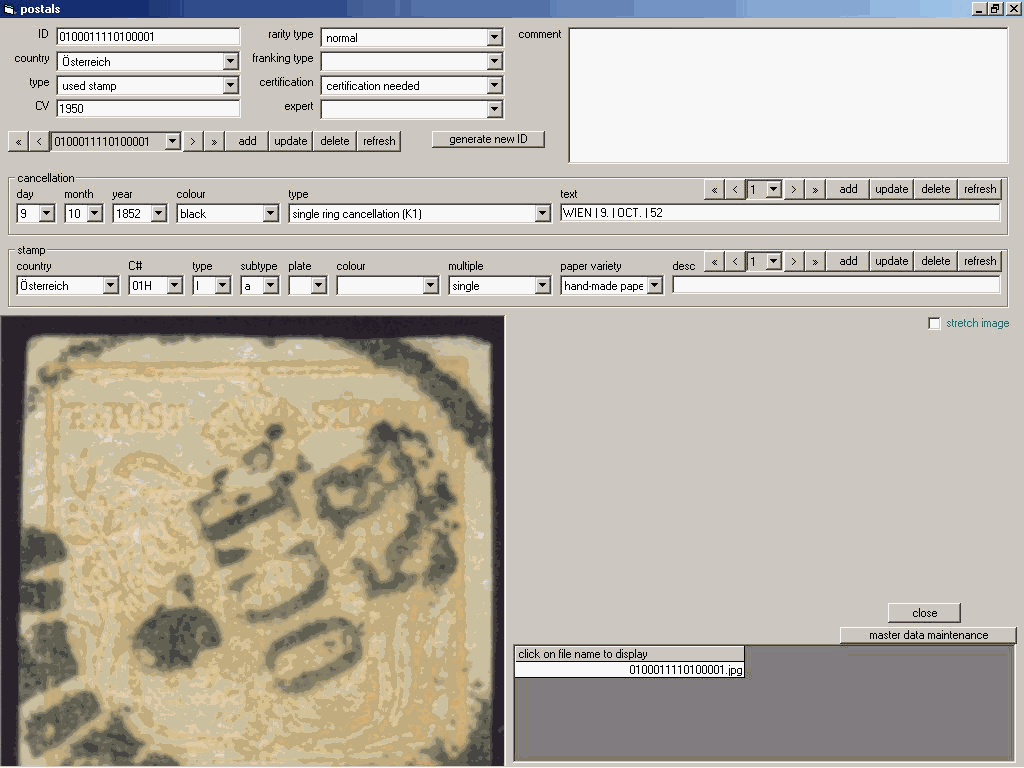
I will now discuss the different sections of this panel in detail.
The first section is the
postal section, to document the postal details of the exhibit.
The
 is to provide an unique identification for the exhibit, you may use any combination of characters and digits, or press
  to generate an new ID.
The
 is the country where the postal origins. You may customize the list of countries (and all other contents of drop-down-boxes) by pressing
  .
.
The
 categorizes the postal as loose stamp, letter, front cover, postal stationary, ...
The catalog value
 values the postal according to the entries in the country master table.
The
 defines if a postal is a rarity, is available in normal stores, or even is defect.
The
 differences between single frankings, multiple frankings etc. if type is piece, cover, letter etc.
The
 is a flag, if certification is needed, already done or not necessary - if the postal is already certified, then the name of the
  may also be provided.
The
 may be used to enter more information about the postal.
You need to know how to
navigate thru the records, this is done using the data control:
The functions of the buttons are:





When adding a record, no changes are made on the data base, so you need to press
to save your changes.
If you want to discard the changes you made, simply press the
button.
The next section documents the
cancellations of the postal, if not unused.
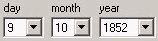
The
 and
and  defaults to "black" and "single ring cancellation".
The
 is the text as it appears on the cancellation.
The third section documents the
stamp details of the postal.
The
 defaults to the country of the postal.


 ,
,  and
and  need not to be documented, only if you collect varieties according.
The
 differs single stamps, pairs, blocks etc.
The
 differs hand- and machine-made paper and also ribbed and laid paper.
The
 may be used to describe specialities as plate flaws or defects.
The fourth section displays
image(s) of the postal.Caution: Images have to be saved in the subdirectory images under the program-directory, the file name(s) have to be prefixed with the ID and suffixed by the file type .jpg to be recognized by the program.
The image displays the primary image.
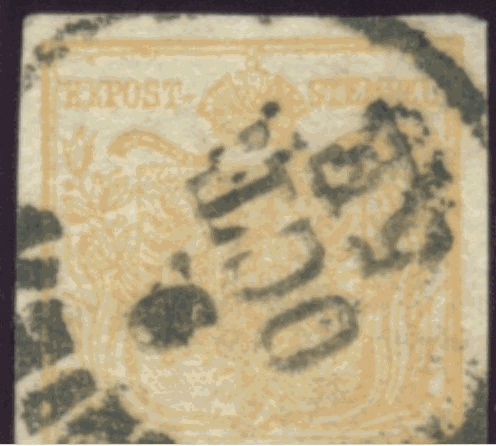
The
 function does not work at the moment because of limitations of Visual Basic, but (i hope) will control if the image is displayed 1:1 or stretched to fit onto the screen.
The filename box
 displays all filenames according to the postal. If you click on any file name the image is displayed.
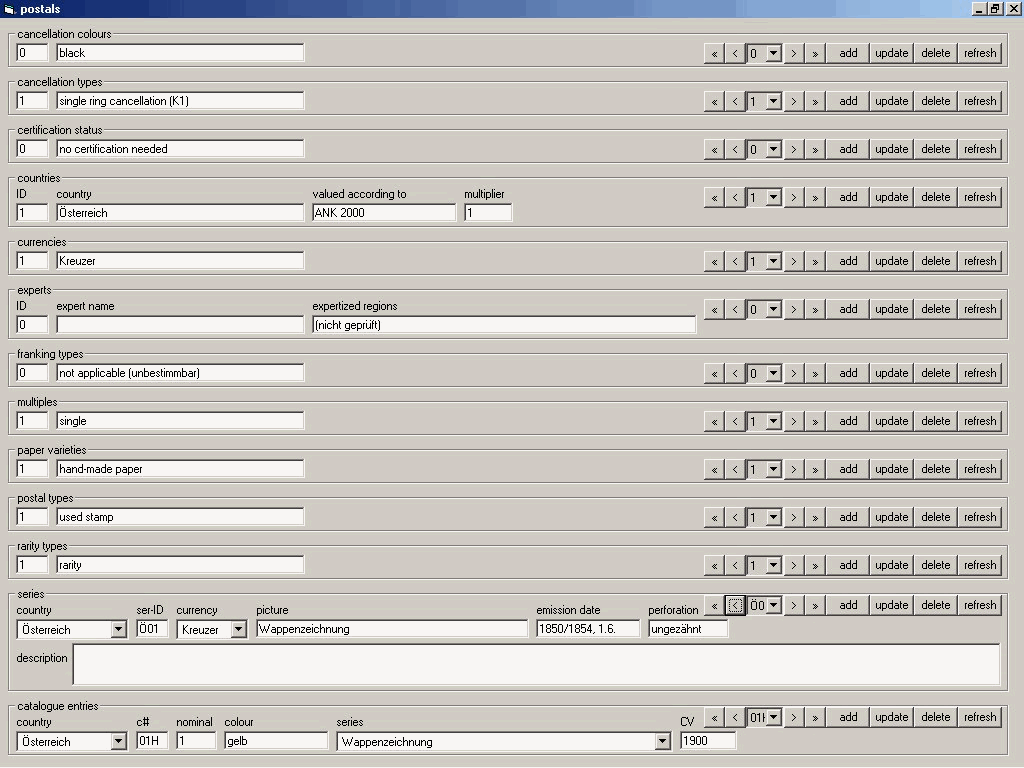
The master data maintenance panel: